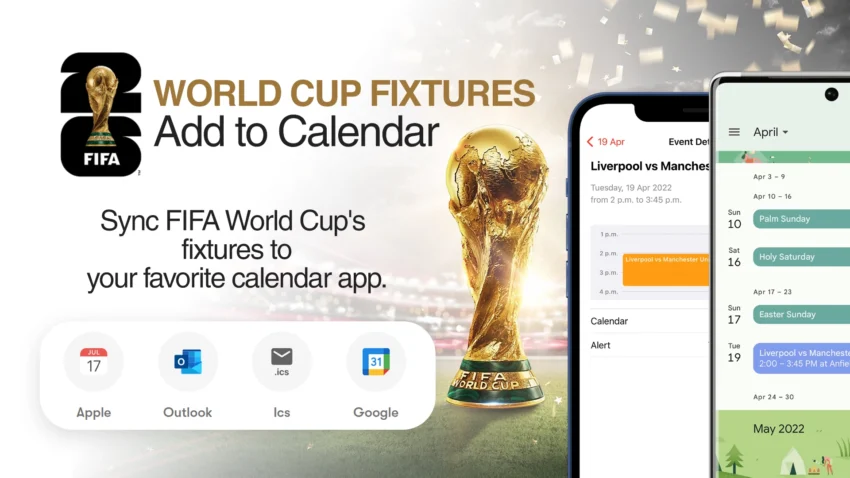
The 2026 FIFA World Cup is shaping up to be the biggest tournament in football history, with 48 teams competing across the USA, Canada, and Mexico. With matches happening across multiple time zones, keeping track of the schedule can be a nightmare for fans. But what if you could automatically add every single match to your daily calendar, fully adjusted to your local time?
In this guide, we will show you exactly how to sync the 2026 World Cup schedule to your calendar whether you are using an iPhone (iOS), an Android device, or a Huawei smartphone.Wanna more tips and tricks? Click here!
The Simple Logic: Click, Subscribe, and Sync!
Gone are the days of manually typing match dates into your phone. Today, syncing a tournament fixture is incredibly simple. The core logic across all devices is exactly the same:
- Find a sync link (provided by sports platforms or independent fixture websites – links provided below).
- Click the link on your smartphone.
- Accept the prompt to subscribe to the calendar.
- Done! The matches will automatically populate in your calendar app.
Let’s break down the exact steps for each operating system.
Step-by-Step Guide for Every Device
How to Add World Cup Matches to Apple Calendar (iOS / iPhone)
Apple users can sync the fixtures to their native iOS Calendar in just a few seconds.
- Open Safari: Scroll down to the links section below and choose a provider (e.g., FotMob or Futpools).
- Click the Sync Link: Tap on the specific link designated for iOS or Apple Calendar.
- Confirm the Subscription: A pop-up will appear on your screen saying, “Would you like to subscribe to the calendar?”
- Tap ‘Subscribe’: Once you tap subscribe, another screen will appear where you can change the color of the events or turn off alerts.
- Tap ‘Add’: Check your Apple Calendar app, and all the matches will be there, perfectly adjusted to your local time zone!
How to Add World Cup Matches to Google Calendar (Android)
For Android users (Samsung, Google Pixel, Xiaomi, etc.), Google Calendar handles the heavy lifting.
- Use Your Browser: Open Chrome and click on one of the World Cup calendar sync links below.
- Select the “Google Calendar” Option: Click the link specifically made for Google Calendar (usually an
.icswebcal link). - Redirect to Google Calendar: Your browser will either prompt you to open the Google Calendar app or redirect you to the desktop version of Google Calendar.
- Add Calendar: A prompt will appear asking: “Add calendar: World Cup 2026?”
- Click ‘Add’: Give your phone a few moments to sync. Once completed, the matches will appear in your Google Calendar widget and app. (Pro Tip: Ensure your Google Account is syncing calendars properly in your phone settings).
Have you Xiaomi Device? Look at Here!
How to Sync World Cup Schedule on Huawei Devices
Since modern Huawei devices use Huawei Mobile Services (HMS) instead of Google Mobile Services (GMS), the process is slightly different but just as easy using the native Huawei Calendar app.
- Open Huawei Browser: Go to our links section below.
- Click the Sync Link: Tap the standard calendar link (often labeled for Outlook, Apple, or generic
.icsformat). - Download the .ics File (If Prompted): Depending on the link, your Huawei device might download an
.ics(iCalendar) file. - Open with Huawei Calendar: Tap on the downloaded file. Your phone will ask which app to use—select the native Huawei Calendar.
- Import Events: The app will show a preview of all the matches. Simply tap “Import” or “Add to Calendar”. The fixtures are now successfully synced!
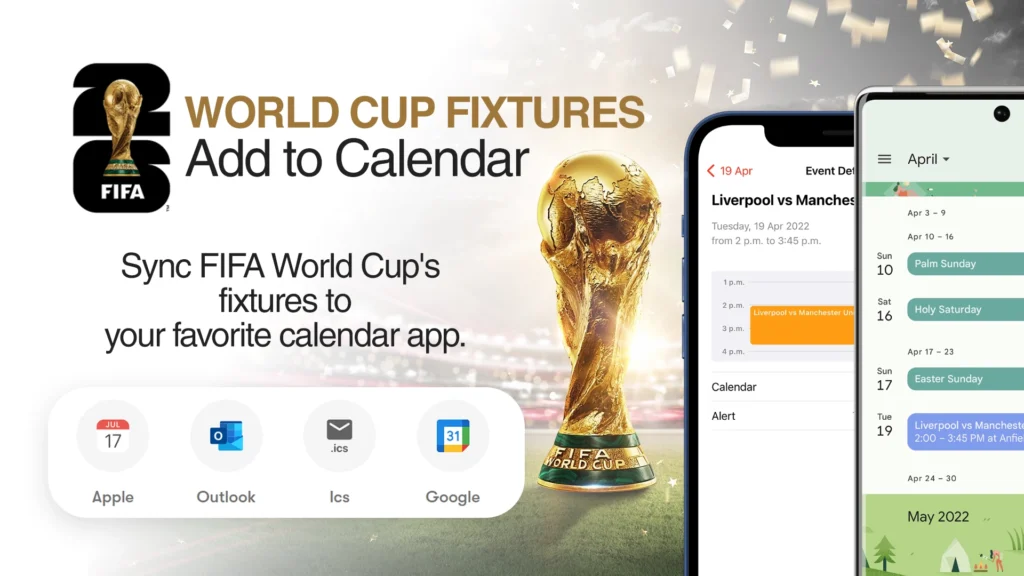
🔗 World Cup Calendar Links (Click to Sync)
Here are the most reliable and popular links currently being shared by football fans to instantly sync the calendar. Simply click on your device:
- World Cup Calendar for Apple Devices
- World Cup Calendar for Outlook
- World Cup Calendar for .Ics
- World Cup Calendar for Google Calendar
Frequently Asked Questions
Yes! As long as you “Subscribed” to the calendar via FotMob, Sky Sports, or Futpools (rather than just importing a static file), the schedule will automatically update in the background when the group stages end and the knockout rounds begin.
Yes, syncing an .ics calendar from a reputable sports platform is completely safe. It only has permission to add events, not read your personal data.
Absolutely. The digital calendar files are programmed in UTC. Your phone’s calendar app will automatically translate this into your local time, so you don’t have to worry about the time differences across the USA, Canada, and Mexico!